Summary of this Report
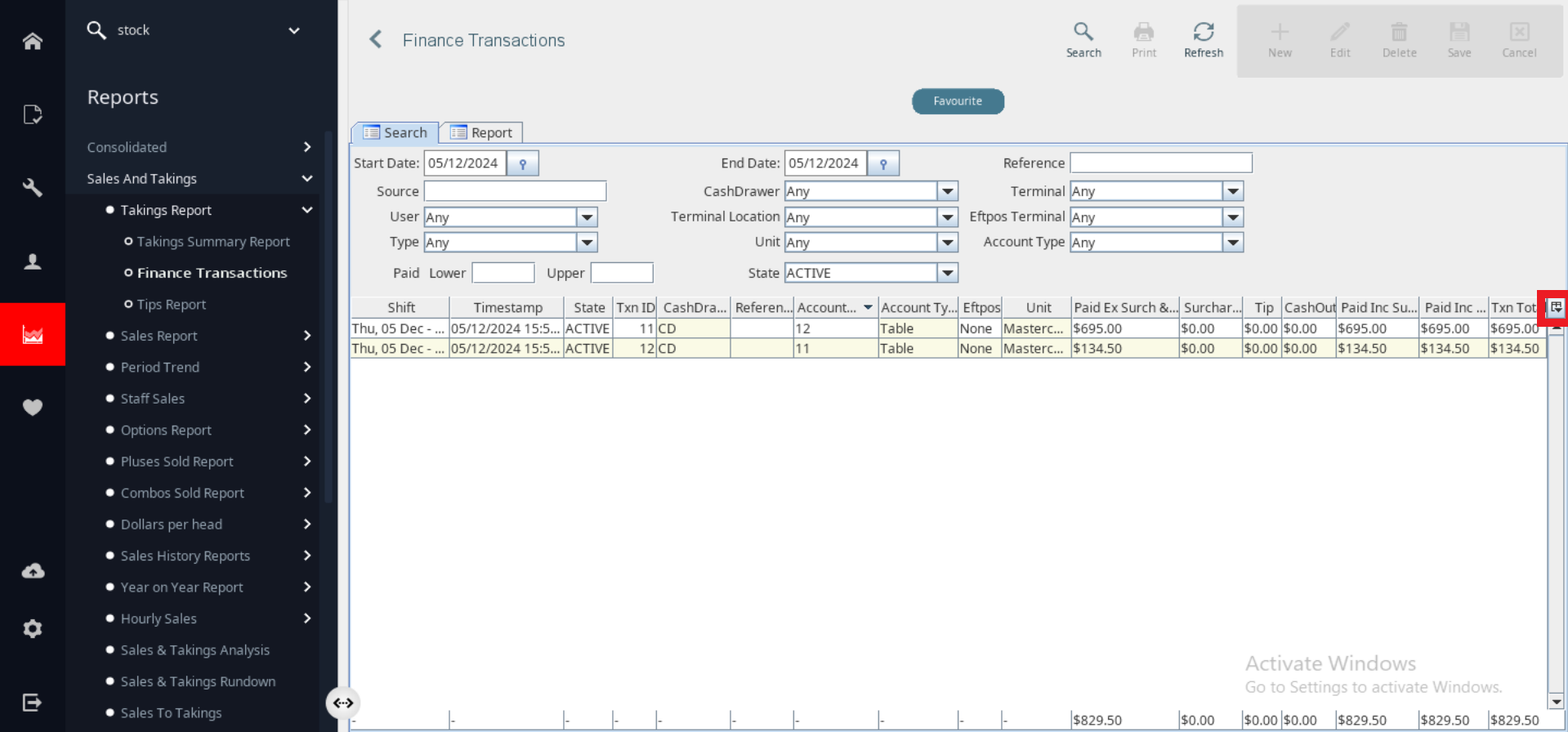
The Finance Transaction Report provides a list of all payment transactions made within a highly customizable set of parameters. This is not a typical end-of-day report but rather a troubleshooting tool that aids in reconciliation by identifying specific transactions or groups of transactions.
Note: To find this report search 'Finance Transaction Report' in OfficeMate
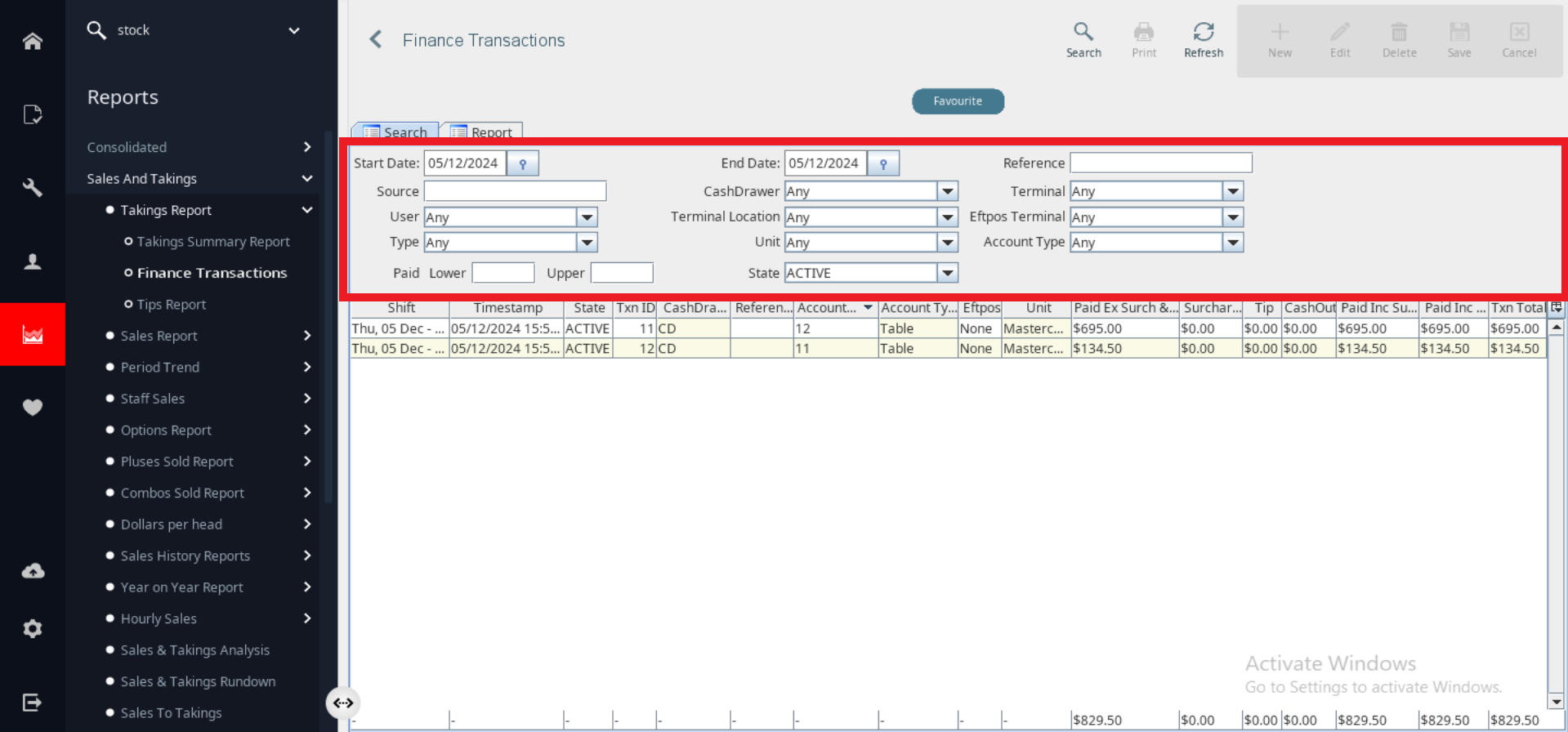
Filters Available in this Report
| Label |
Description |
| Start Date/End Date |
- Refine search by specific date range.
|
| Source |
- Refine search through transactions from external sources (Doshii, Uber Eats, Hungry Hungry).
|
| User |
- Refine search to view all transactions made by a particular user or users.
- Select the drop-down box and select the relevant users.
|
| Type |
- Refine search to view a particular type of transaction or transactions (Cash, Credit, Debit, etc.).
- Select the drop-down box and select the relevant transaction types.
|
| Paid |
- Refine search by dollar amount.
- Define the lower and/or upper limit to filter results.
|
| Cash Drawer |
- Refine search to a specific cash drawer within the venue.
|
| Terminal Location |
- If multiple transaction terminals exist in a venue, results can be filtered to specific terminals.
- Select the drop-down box and select the relevant terminal locations to view.
|
| Unit |
- Refines search to a specific method of payment.
- Where 'Type' identifies the general method of payment used (cash, card), 'Unit' identifies the specific method.
- For example: the payment 'Type' was card. The payment 'Unit' was Amex, Mastercard or Visa.
|
| State |
- Refines search by its state - Active, Deleted, or Moved.
- Note: Deleted or Moved transactions will not affect the Total Takings at the bottom of the generated report.
|
| Reference |
- Search for a specific transaction by entering the reference number from the payment provider.
|
| Eftpos Terminal |
- If multiple Eftpos terminals are integrated in a venue, results can be refined to a specific Eftpos terminal.
- Select the drop-down box and select the relevant terminals.
|
| Account Type |
- Refine search by the account type a transaction was made on (Table, Take-away, phone etc.).
- Select the drop-down box and select the relevant account type to view.
|
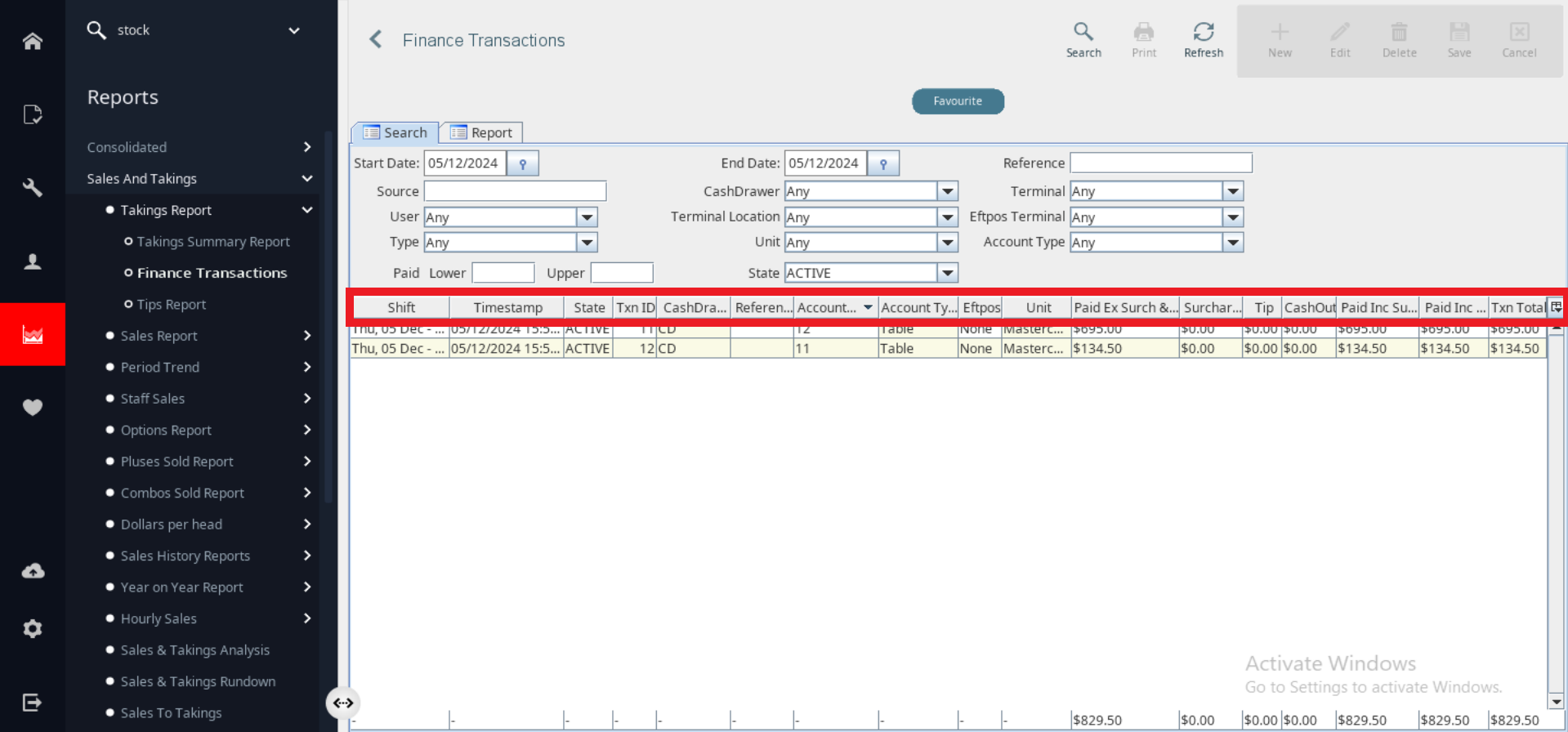
The information in this Report
| Label |
Description |
| Shift |
- Identifies during which shift the transaction occurred in.
- Requires Shifts to be configured in OfficeMate.
|
| Timestamp |
- Identifies the Time and Date.
- Note: this is a record of when the payment was made not when the order was started.
|
| State |
- Identifies the state of the transaction: Active, Deleted, Moved.
- Note: Deleted or Moved transactions will not affect total takings of the generated report.
|
| TXN ID |
- Identifies the Transaction ID which is the OrderMate reference number.
|
| User |
- Identifies the User account that processed the transaction
- Note: this is not a default item on the report.
|
| Cash Drawer |
- Identifies which cash drawer was used for a transaction.
|
| Terminal |
- Identifies which POS Terminal was used for a transaction.
- Note: This is not a default item on the report.
|
| Reference |
- Identifies the reference number of the transaction from the payment provider.
- Note: This section will be left blank for cash and offline transactions or if the venue does not have Eftpos integrated.
|
| Account ID |
- Identifies the OrderMate account number.
- This number also appears on the WaiterMate receipt.
|
| Account Type |
- Identifies which account type the transaction was processed through (Table, Bar Tab, Quick Sale etc.).
|
| Eftpos |
- Identifies name of Eftpos terminal.
- Note: This section will be left blank for cash and offline transactions or if the venue does not have Eftpos integrated.
|
| Source |
- Any transactions from external sources (Doshii, Uber Eats, Hungry Hungry) will be identified here.
- Note: this section will be left blank for orders processed through WaiterMate.
|
| Type |
- Identifies which type of payment the transaction was processed as (cash, credit, etc.).
|
| Unit |
- Identifies the specific method of payment used in a transaction (Amex, Mastercard, Visa etc.).
|
| Paid ex Surch & Tip |
- Identifies the Account Total
- Excluding Surcharges
- Excluding Tips
- Excluding Cash Out
|
| Tip |
- Identifies the total Tip amount paid during a transaction.
|
| Cash Out |
- Identifies the Cash Out paid during a transaction.
- Must be processed through the Cash Out feature in 'System Admin' on WaiterMate.
|
| Surcharge |
- Identifies the Total Surcharge paid during a transaction.
|
| Paid Inc Surcharge |
- Identifies the Transaction Total including Surcharge
- Excluding Tip
- Excluding Cash Out
|
| Paid Inc Tip |
- Identifies the Transaction Total including Tip
- Excluding Surcharges
- Excluding Tip
|
| TXN Total |
- Identifies the Transaction Total
- Including Surcharges
- Including Tip
- Including Cash Out
|
Note: To enable/disable information shown in this report, use the drop-down button on the right-hand side of the page and select/deselect all relevant information.